


S. Alexei Gitter
Members
-
Joined
-
Last visited
-
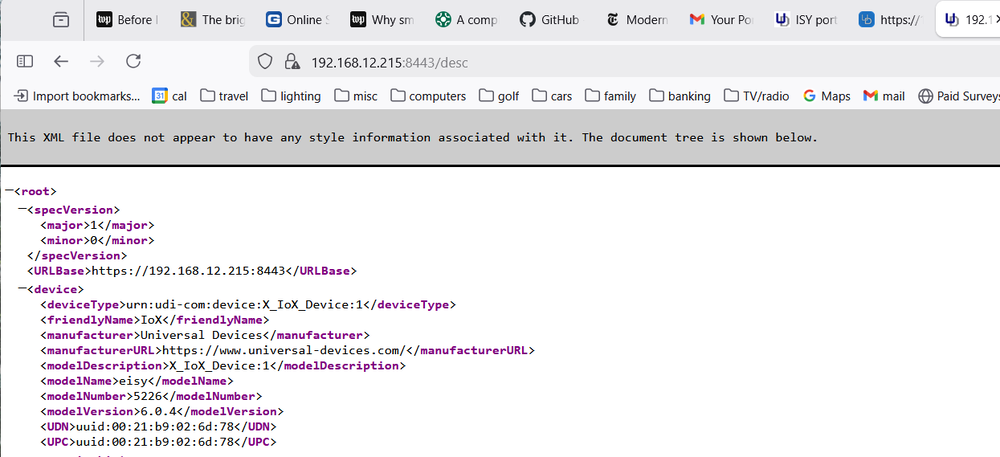
also ... I still get the "This XML file ... " text when trying to get to the portal ... I can get to the portal through the internet via my.iso.io but I don't want to get there through the internet, I would prefer to do it locally
-
I am running the Admin Console on the EISY directly login to the EISY as admin -> start.win -> shortcut to the IoX finder this starts the IoX finder but it never shows any IoX devices I can add the https://1.2.3.4:8443/desc but even then it does not do anything with this https://eisy.local... fails the Wiki screens show options to start a window or other options but I cannot figure out how to trigger these --- or --- login to the EISY as admin ->start.win ->shortcut to the admin console this starts the admin console but I cannot find any options to add matter devices prior I had an option to add a matter device but I did not have a TBR so it failed now there is a new Matter top level tab but it does not indicate anything about adding devices So ...I am confused about the use of the IoX finder - any suggestsions about why I would use the IoX finder vs the direct start to the admin console ...I am confused about how to add a matter device - any suggestions about where I should post for information about this?
-
https://1.2.3.4:8443/desc replies "This XML file does not appear to have any style information associated with it. The document tree is shown below." What am I doing wrong? I am trying to start the EISY-UI screens. I want to add some matter devices over thread. I am an old time insteon user and I am having trouble wrapping my head around the IoX launcher/ISY/EISY/EISY-UI/UD-mobile/admin console/portal terminology to keep them all straight. I can't get the IoX launcher to find an hold onto an IoX device to launch an admin console, I have a shortcut on the EISY desktop that launches it. I am an long time C programmer/linux admin and I was expecting to continue to use the admin console but it seems that is being deprecated for the EISY-UI web based app but I cannot get it to start. I got a Thread border router (Ikea device) and expected to add matter devices, and lat time I tried this I found it could not add them because I did not have a TBR but now I do and I cannot find the options to add matter devices. I am confused. there are so many devices interfaces it is unclear which I am using and why I should use one over another.
-
argh ... something odd with that pair of monitors ... I used another pair and these worked. The pair that wouldn't work are standard 1920x1280 and the pair that does are 2560x1440 ... I believe I was using the low(er)-res pair when I was on the EISY earlier but perhaps not. They seem to be having trouble on other systems now too ... double argh. Sorry for the alert, Should have tried the easy solution first. Thank-you
-
I have not been using the HDMI screens and only recently reattached them and now I see nothing on them. when it reboots I do not see the boot sequence. The screens indicate the HDMI port is not connected. I was using them for my initial configuration and only recently went back to add more devices, scenes and some actions but now I cannot get the screens to be active. It appears to be working as I can get to it through the UDmobile interface and it appears to be responding to commands. I rarely use the mobile interface (I prefer a standalone insteon home without me haveing to remotely control it) so I do not know for sure it is working but it does respond to selections. What do I do to get the HDMI interface back?.
