


TRI0N-1
Members
-
Joined
-
Last visited
Everything posted by TRI0N-1
-
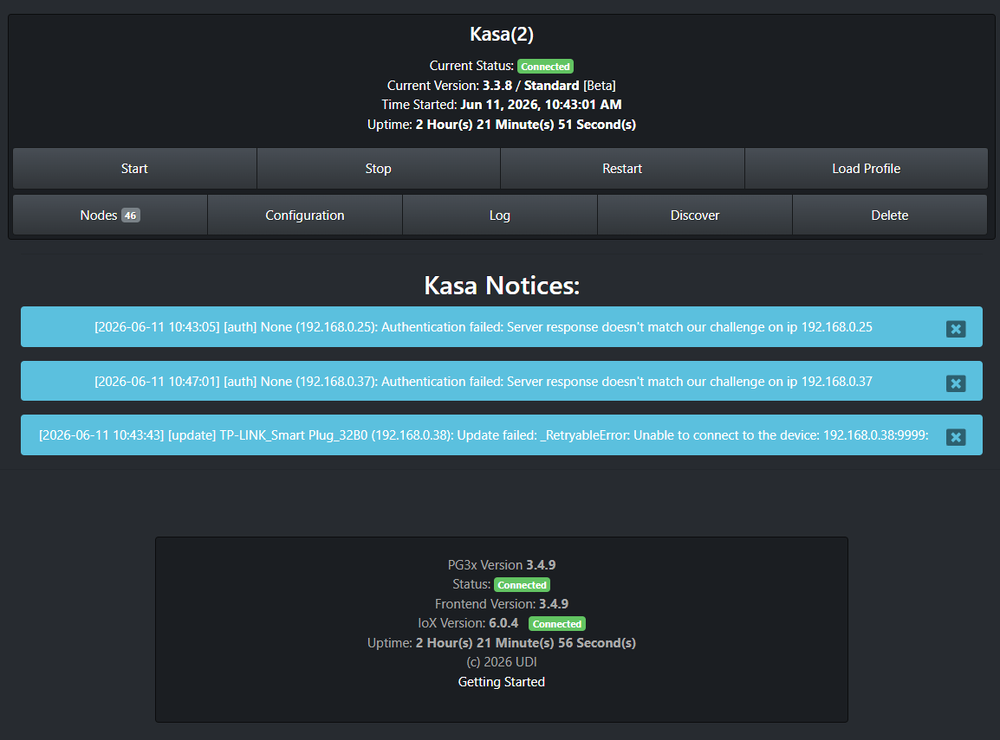
2 x HS300 1 x HS200 I can see the main HS300 information, however I do not have control of the individual outlets of the power strip. I'm using 6.0.4 since it's stable and things worked. I updated the Kasa to 3.3.8 after reading that the HS300 was fixed but the above problem now exists with individual outlets. Good news is there are being use for seasonal lights and they have not decorated the window displays at this time so no loss on what turns on or off. The HS200 is odd, because there is another 3 that are working just fine.
-
Agreed. You won't admit you pushed Alpha. Thanks for your time...
-
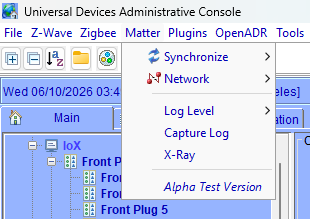
If you're thinking that I'm just going to play dumb and believe Matter doesn't have a Gold Release and that the only options is Alpha , no. There is a gold release (production) of Matter that follows CSA. You are by choice are using the Alpha and that means we are testing your development of Alpha. People normally don't pay to test people development unless like most will offer their "Beta Releases" to a select group of people that Opt-In to do so. So yes, you do put out Alpha testing into the General Public releases. Unless you're developing v1.5 for video stream capability, it's been Gold v1.4 for quite some time now. Or v1.4.1 for QRC/NFC functions to add new devices because that's still isn't stable for Gold. Just saying your releases are a bit unorthodox on how such things are released to general public in the standard industry.
-
It's in you product is it not? That says you put out Alpha for people to use. Pretty straight forward.
-
Proof of what? Being able to export data via eISY programs and then pulling those files into the console via my code? That's not impossible. Heck you are still even showing Alpha for Matter in 6.0.4
-
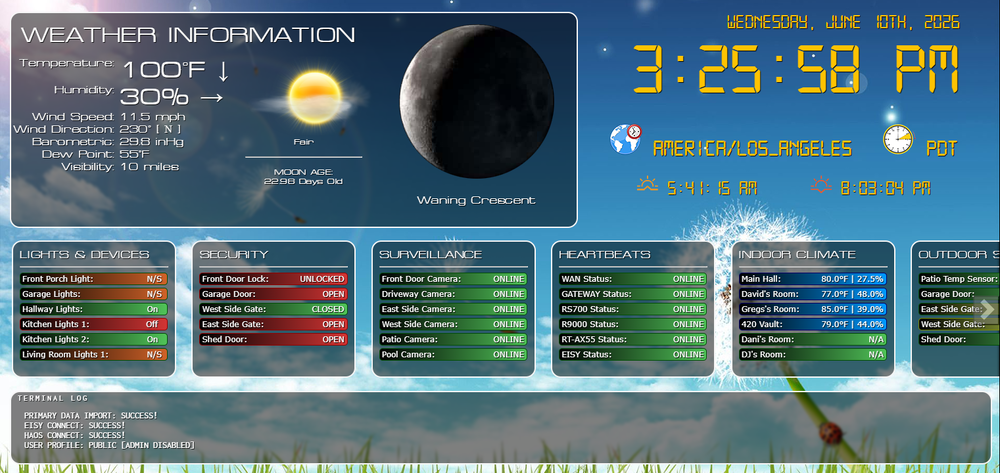
You literally had eISY showing Alpha at one time about a year ago. My biggest disappointment was the client wanted to upgrade to the eISY. So I did too. Moved from ISY994 as well so that I could develop off it for a Home Automation Console, That didn't turn out to be very useful using the initial release of eISY so coded a workaround to communicate with eISY for development. However what could have been something I pushed to clients ended up DOA and I lost complete interest in developing it outside my own use. As you can see the N/S are devices that stopped working with eISY over the years of upgrades. So yeah, it could have been something very nice.
-
I'm not the client. I'm not going move them on to another product that ONCE was a great product. I'm not into just throwing money at things because I like it. ISY was SOLID. eISY turned out to be a Pay to Beta (ALPHA). I've spent years in development. At 21 years old I was head of the HP Deskjet Division project for Windows 95 (Chicago Project). In "life" this would get you fired! That's not a joke. If I went to even think of presenting something like this to say the NRC work i do at Diablo Canyon, I could literally start updating my resume.
-
I did submit a ticket. Also asked if I should bill you or the extra time to fix the clients problems since I can't get in. I noticed you are now avoiding bad rep responses by having to approve messages. So yeah you're going to hear it. You have had us Beta Testing a product that costs $600 which is something in my entire professional career is NEVER HEARD OF. Beta is being nice, when it's not even Alpha worthy. So I guess I'm going to sit here all day waiting for a ticket response while the clients get billed $200 an hour because of your product.
-
Never ending saga continuers. Didn't have problems last time I needed to login (probably 6 moths ago) to a clients eISY but Surprise! Can't login Admin via Poral or Local. I can login local. I'm sure I'm going to hear the "try upgrading" which is something I have been avoiding to do at this location since everything was stable (6.0.4), no need to stir the pot of nightmares and also because I have upgraded at the home system to learn that I don't want that upgrade (6.0.5). Even paid for another year of portal just for snitz and giggles. So what's the deal now?
-
Been using it for YEARS, almost a decade now. ISY, eISY.. Lets go with the basics. Govee and TP-Link Kasa has not been stable for the last 2 years. Home unit has been in such horrible shape using just those 2 has been nothing but a nightmare. Now I can't even login to the Admin via Portal to configure the eISY for the new network at a client location. Then I read you're pushing new hardware. You got a Release version of Kasa and a Beta Version of Kasa, both have the cons that make it un-usable. We have basically stopped upgrading because EVERY time we do something goes ape snitz. That's not a good sales pitch. Honestly we have been Beta Testers for eISY for the last few years. Buy something for $600 and you're a beta tester. I have never heard of such a thing. EVER! And saying Beta is being nice. This isn't even Alpha worthy. To put it into a clear picture. I use to refer people to ISY left and right. I have referred zero (0) to eISY. That's the reality of it.
-
So now with the launch of eISY r2 the eISY that is currently broken most cases, plugins that don't work and now you are kicking that to the curb to roll out another $600 piece of hardware that God knows if it will even work? Is that what this company is coming to?

