ausgarretts
Members
-
Joined
-
Last visited
Everything posted by ausgarretts
-
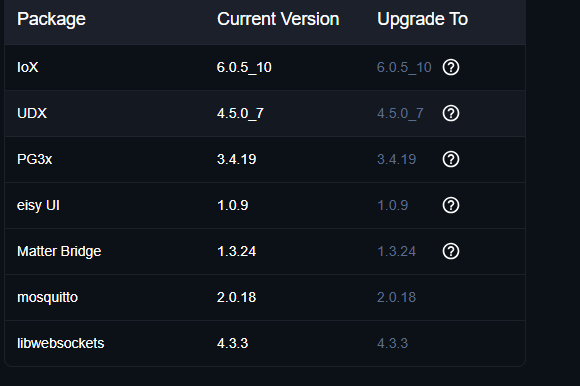
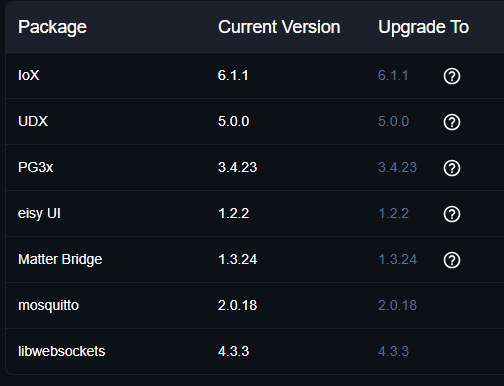
Thanks Javi! Updating firmware fixed the issue. I had assumed that since the display looked like the following that it was up to date. Obviously not. Once I clicked on Upgrade Packages it found the "new" packages and upgraded. WAS NOW Thanks again Javi!
-
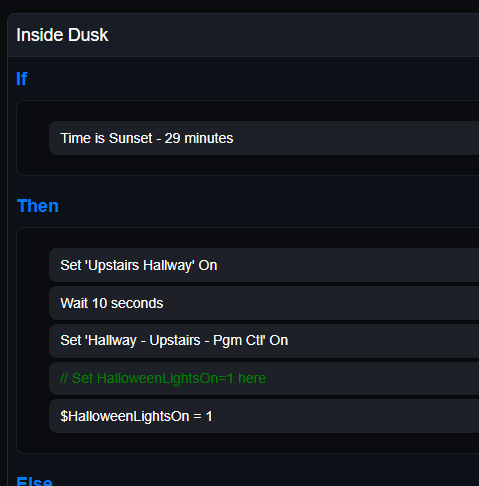
So... for example: If you look at my scene above. Are you saying there's no way to change from "Time is Sunset - 29 minutes" to "Time is Sunset - 13 minutes" in the program If statement? Right clicking, left clicking, dragging the box - all do nothing. I have to be missing something, somewhere...
-
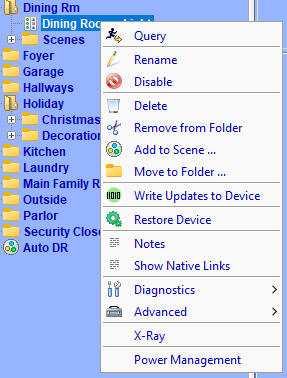
Ok, so apparently, I'm not understanding how to edit Programs and/or add new devices, etc. to my configuration using eisy-ui. With the recent announcement that the Admin Console & Java are going away I need to figure out eisy-ui. I've tried in both Microsoft Edge and Chrome browsers. My first request to Universal Devices - PLEASE update the eisy-ui documentation to provide a step-by-step procedure on how to add devices (node members) and add/update programs. I "think" I have edit enabled but I'm not sure what this allows me to edit. It doesn't appear to allow me to change anything (node name, move the device to a different folder, etc). If I click the '+' icon, all I'm allowed to do is create a new folder or group - not add a new node. I can see my Programs, but I'm unable to change the name, add/remove programs, change if/then/else statements, etc. For example: There are no 3 menu "dots", gear etc... to allow me to edit anything. Double clicking or right clicking anywhere does not seem to have any effect. Any guidance would be greatly appreciated.

-
Thanks Paul... This looks like something I can modify to use. My usage is similar to yours - I want to know if the power to my freezer fails.
-
I need to run a program every 10 minutes and then receive a notification if the Insteon device is unreachable. I can easily determine via query if the device is on/off but how do I programmatically determine if it's unreachable (i.e. offline)?
-
Thanks! I didn't remember having to remove the old device first. I assumed if I removed the old device before replacing it that old the device would just "disappear" from the scene, or program. I am replacing like-for-like - the old device failed so I was just swapping in a new 2477S.
-
There used to be an option to replace a defective device easily in the UI but that option seems to have disappeared over time. What's the easiest way to remove/replace an existing Insteon device in all programs, scenes, etc?