


Athlon
Members
-
Joined
-
Last visited
Everything posted by Athlon
-
It's possible the wording in the update announcement calling the new UI the 'default interface' might be causing some confusion.
-
The new UI is a work in progress. It's nowhere near complete. You are seeing what it can do at the moment, and that's it for now. It will replace the AC some day - that's the goal - but not for some time.
-
Was hoping it would be that simple for you. Someone else is going to have to chime in here.
-
I'm not on Apple device - I use Firefox on a Windows PC, so I'm not exactly sure what that looks like to you. Having said that, I sometimes get a warning saying a website is not secure. Usually on that same screen is an 'Advanced' link I can click to see more info. On the advanced screen there is an option to ignore the warning. In the case of eisy.local I know it to be safe, so I click on proceed anyway because I know it to be safe. It's local (on my own network). Take a closer look at that Safari screen to see if you can go to the eisy.local site despite the warning. The warning usually has to do with unsigned certificates - ignoring that warning is not an issue in this case.
-
Yep, that's how I did it. Someone else will have to chime in here.
-
How did you reinstall them? (From what screen?)
-
http://polisy.local/ or https://eisy.local
-
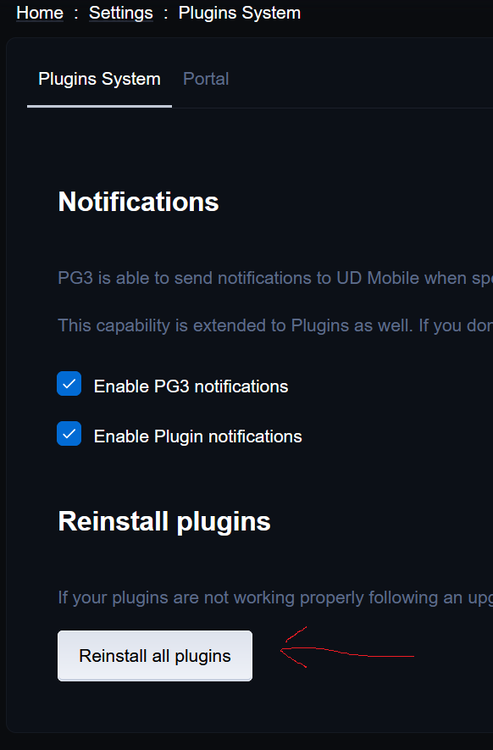
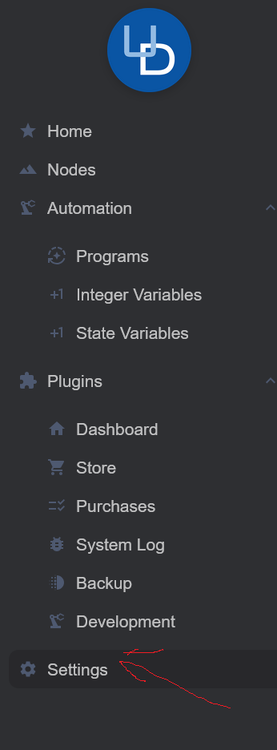
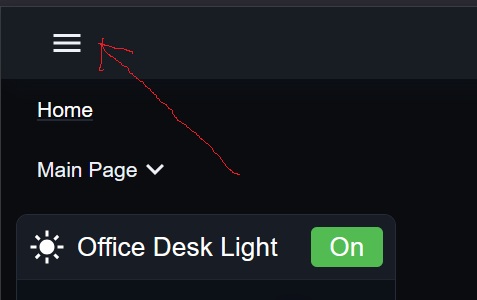
@woodchip Main Menu (upper left corner): Then Settings: Then Reinstall Plugins:
-
Try from the Main Menu - Settings/Reinstall all plugins Worked for me...
-
-
No sir. And I've been playing around with it - adding tiles and widgets just for the hell of it.
-
Figured it out. 😀 Went to Main Menu/Settings/Reinstall Plugins and clicked on Reinstall All Plugins. I can now add tiles.
-
After clicking on the setting icon (gear), then 'Add Tiles', I get this: Create Tiles From Nodes Error: Request failed with status code 404 --- If I click on the Main Menu, then Nodes, a list of (I think) nodes shows briefly, then this: Home Nodes Error: Request failed with status code 404 --- I've read through the wiki and it seems they should be working - is it because I have a Polisy?
-
yep
-
I just updated my Polisy, and can confirm I have the new UI at: http://polisy.local/
-
UPDATE: We do have it on Polisy! http://polisy.local/
-
Corrected link: http://polisy.local/ (I removed the extra . (period).) The new UI is there for me as well. Thank you for posting this. As for my IoX finder - it's working fine. You may have to manually 'Add' the address for your Polisy.
-
@bmercier Thanks for that. Michael's update email seemed to imply the new UI is available to Polisy users. Is that the case? EDIT: Never mind, I see that it is!
-
Thanks. So I thought as well. The email is a bit ambiguous about that so as a Polisy user I thought I would ask.
-
Update: The first link ( https://192.168.xxx.xxx:3000/dashboard ) in my OP now takes me to my PG3 page.
-
Just logged into the admin console again (without rebooting) and I did not get that error message.
-
I just upgraded to 14.3 and 6.0 on my Polisy. I tried https://192.168.xxx.xx:3000/dashboard, https://eisy.local and https://polisy.local - none of which worked. Do we have the new UI on Polisy? (I used the actual ip address in the first example above.)
-
Same on Polisy before and after upgrading.
-
I think that link is for eisy. At least that's what I see when I hover my mouse over it. Because I own a polisy, it doesn't work for me unless I copy your link and change eisy to polisy.
-
The stream address I use for my Roku's is the one provided by Blue Iris and not the cameras directly. Nothing goes to the cloud here, and I don't have any ports forwarded. You can use VLC to test various direct streams from your Reolink cameras. The Reolink website has a few good tutorials that show you how to discover them and make that happen based on the model cam you have.


