


dbwarner5
Members
-
Joined
-
Last visited
Everything posted by dbwarner5
-
yes. I think I downloaded the log before I started to play with on off etc. I can redo some on /offs and send you another log.
-
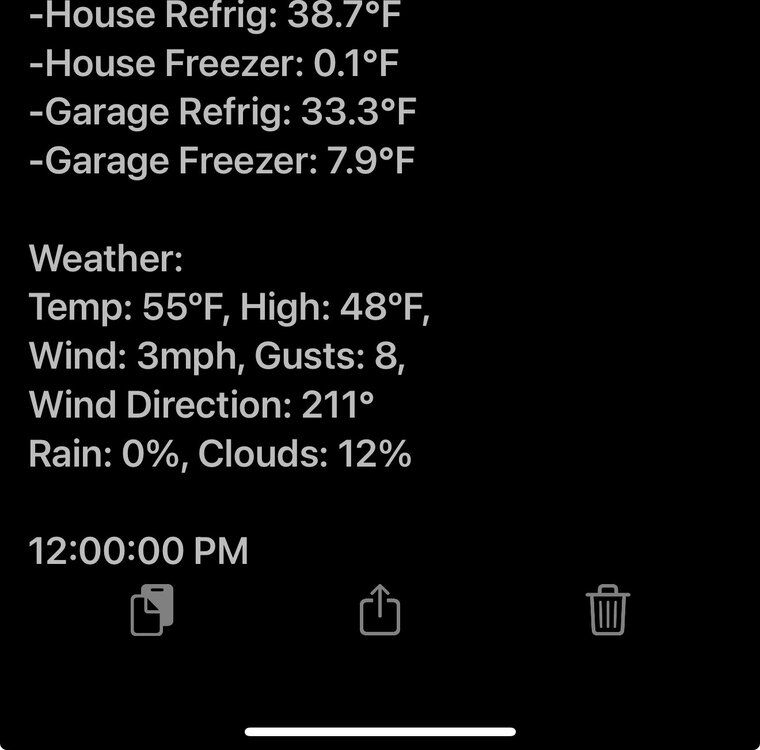
@someguy The easiest way to get the variable you want from a node server into an email is to go to the PGX plugin and hit the copy symbol next to the variable you want and then past it into the program. For example if I want the barometric pressure of my weather flow plug in, I would click on the copy symbol and it will copy the correct string to paste into an email. I get notifications throughout the day when traveling.. I use pushover vs email. but here is an example of the program and the pushover message that gets sent. House Status when away - [ID 00E2][Parent 0203][Run At Startup] If $Away is 1 And ( Time is 8:30:00AM Or Time is 12:00:00PM Or Time is 5:00:00PM Or Time is 9:00:00PM ) Then Set 'Notification Controller / Service Pushover Other' Send Sys Custom With Params Priority=Normal Content 24 Notification ID (ID=24) Else - No Actions - (To add one, press 'Action') Notification in custom notifications looks like this: Security: ${sys.node.n014_area_1.ST}, ${sys.node.n014_area_1.GV0} Doors: -Front: ${sys.node.ZY010_1.ST} and ${sys.node.n014_zone_1.ST}. -Mud Room: ${sys.node.ZY011_1.ST} and ${sys.node.n014_zone_15.ST}. -Back Grg: ${sys.node.ZY012_1.ST} and ${sys.node.n014_zone_12.ST}. -Mstr Bedrm: ${sys.node.n014_zone_10.ST}. -Slider: ${sys.node.n014_zone_33.ST}. -Screen Porch Entry: ${sys.node.n014_zone_5.ST}. -Screen Porch North: ${sys.node.n014_zone_9.ST}. -Screen Porch South: ${sys.node.n014_zone_4.ST}. -S. Garage: ${sys.node.n014_zone_7.ST}. -M. Garage: ${sys.node.n014_zone_3.ST}. -N. Garage: ${sys.node.n014_zone_8.ST}. Main Thermostat: -Set: ${sys.node.ZY004_1.CLISPH} -Temp: ${sys.node.ZY004_1.ST} -Mode: ${sys.node.ZY004_1.CLIMD} -Status: ${sys.node.ZY004_1.CLIHCS}. Upstairs Thermostat: -Set: ${sys.node.ZY005_1.CLISPH} -Temp: ${sys.node.ZY005_1.ST} -Mode: ${sys.node.ZY005_1.CLIMD} -Status: ${sys.node.ZY005_1.CLIHCS}. Main Level: ${var.1.92} Minutes Upstairs: ${var.1.94} Minutes Day 1: ${var.1.98} Day 2: ${var.1.99} Day 3: ${var.1.100} Day 4: ${var.1.101} Day 5: ${var.1.102} Master Fireplace is: ${sys.node.1D 5A C0 1.ST} Water Pump is: ${sys.node.ZY013_1.ST} Temperatures: -Outside: ${var.1.28}ºF -Garage: ${sys.node.n019_ts5.ST} -Hot Tub: ${sys.node.n016_8b4c01000a1c2e.CLITEMP} -Mstr Bedrm: ${sys.node.n019_ts4.ST} -Family Room: ${sys.node.n019_ts1.ST} -Great Room: ${sys.node.n019_ts3.ST} -Office: ${sys.node.n019_ts2.ST} -Lake: ${sys.node.n016_8b4c0100079d9f.CLITEMP} -House Refrig: ${sys.node.n016_8b4c01000ba53e.CLITEMP} -House Freezer: ${sys.node.n016_8b4c01000ba56d.CLITEMP} -Garage Refrig: ${sys.node.n016_8b4c01000ba218.CLITEMP} -Garage Freezer: ${sys.node.n016_8b4c01000ba4d1.CLITEMP} Weather: Temp: ${var.1.28}ºF, High: ${var.1.38}ºF, Wind: ${var.1.11}mph, Gusts: ${var.1.31}, Wind Direction: ${sys.node.n001_285149.WINDDIR} Rain: ${var.1.34}%, Clouds: ${var.1.35}% ${alert.time} Output looks like this Hope seeing a real life example helps!


-
An alternative way to using the virtual switch concept above is to simply replicate part or all of the scene in your If statement: For example if in your scene you have switch 1 @50%, switch 2 @100% and switch 3 @100%, Then put in your If statement the matching values of the scene. Sometimes in a scene I may have just one switch turn on to a very unique value like 98%. Then I only check to see if that one switch is at 98%, which lets me know that scene is on. The drawback to this approach is that you have to make sure you keep the two items "in sync" --> ie 98% in the scene and 98% in the IF statement. Other than that, it's a pretty straightforward and easy way to accomplish the same as a virtual switch.
-
Getting closer... -Discovery went much faster ~5 minutes -names are still messed up -Most of the devices will not respond in AC -Values of on/ off are incorrect Still lots of errors. Error logs attached. Currently the whole house is off, so all should be at zero below.. (node 20) Meross_4-19-2025_114716_AM.zip

-
Also the nodes that came in, did not have the correct names.

-
installed 1.02 Still lots of errors. discovery still very slow as a result. Only found 9 devices. Attached is the log package. thanks! Meross_4-18-2025_14845_PM.zip
-
Sorry, no that did not work. I had already tried that too, forgot to mention. thanks
-
try first "quitting" the Alexa app on the phone by swiping up and killing hte app. If that doesn't change the linking ability, try to restart your phone and try it again.
-
Cant update.. getting the following message. thanks.

-
Yes. All of my devices are remote not local. thanks! let me know when you want me to try again
-
@bpwwer Loaded the new plug in. Again took quite a while for discovery ~ 15-20 minutes. Lots of errors. Everything is pointing to "offline" in AC No node for the Controller in AC No grouping of nodes.. they ended up as their names alphabetically --> for testing purposes would be easier if they were grouped under the controller. One item did not come in with its name.. came in as Smart Bulb. Attached are the logs after I hit Discovery. Cheers!! Meross_4-10-2025_121759_PM.zip
-
@bpwwer just updated the plug in.. will start to test it. THANKS!!
-
Oops.. typo.. meant to say that program 2 is set to run at startup. And program 1 runs at multiple times of the day to ensure prog 2 is actually running.
-
I prefer to do both... have program one run at startup and then I also set multiple times in the if to ensure that program 2 is running. If Time is: 8am or 12pm or 5pm or 12 am etc... Then Run program 2 then.
-
Log file sent... thanks.
-
Will I be able to control the meross devices remotely? Meaning, right now my Eisy is at house #1, the meross are at house #2. But if we can get it working, I will be adding a new Eisy to house #2. So in the meantime, it sounds like you are expecting a "local" connection for the plug in to work? So I am not sure I can help with testing in that case for now.
-
I think I understand most of what you said.. lol... if there is any data I can get for you from my current switches etc, let me know how etc. I have on / off, dimmer, 3ways, plug and bulbs. thanks.
-
When you say hub, what are you referring to? Meross doesn't have a hub as far as I know. I do not use a hub for meross directly, but they are part of my Smartthings hub. For apple HomeKit, all you need is the app on your phone. No other apple hardware should be needed. thanks.
-
Interesting on your double adding the devices.. I have not had any problem with plugs, switches, and bulbs.. I seem to remember though if they are Apple HomeKit version, than you need to add it via home kit app.
-
I would say about half of my devices work with matter. Yes they have quite a few devices..if this is something of interest to you to pursue, I would be happy to send you a few devices: dimmer, plug, bulb, on/off switch. Let me know.
-
I have a second home where I use Samsung smarthings hub with meross switches and bulbs. For the 2nd or 3d time, my Smartthings has lost all the devices in my 30+ routines, making them unusable until I recreate them. Annoying to say the least.. I would like to switch over to an Eisy at this location, but I need a Meross Plug in. Is there any developers out there that would like to work on this? Feel free to DM me. Thanks!
-
ok.. perfect.. then I can use that number to check to see if hte data is current. that is what I was looking for.. thanks!
-
Deleted the WEbcontorl 8 beta, Installed 2 instances of Webcontol 832. First one worked as expected. The second one would not take the Json Names, but did recognize the nodes. Had to delete it and reinstall... all working now as expected. Just a FYI.. cheers.
-
To verify, the problem is simply that I am running 8 vs 832 so it wont see it, even in the beta store. I will have to delete 8 and just start over with 832. No worries..:) . Thanks for a great plugin!
-
The above doesn't tell me if my station is actually online.. all it says is the Plugin connection to the hub. It's the hub connection to the Weather station that keeps dropping that I am looking to monitor. I get emails like this: Your WeatherFlow Tempest device named ST-00049763 at station Elk lake stopped sending data. Check that it has power and/or try moving your Tempest closer to your WeatherFlow Hub. The plug in will still report connected. Am not sure what the Hub Seconds is actually referring to. But I may be able to use that as currently. mine is reading 165469.


