Skip to content
View in the app

A better way to browse. Learn more.

Universal Devices Forum

A full-screen app on your home screen with push notifications, badges and more.

To install this app on iOS and iPadOS
  1. Tap the Share icon in Safari
  2. Scroll the menu and tap Add to Home Screen.
  3. Tap Add in the top-right corner.
To install this app on Android
  1. Tap the 3-dot menu (⋮) in the top-right corner of the browser.
  2. Tap Add to Home screen or Install app.
  3. Confirm by tapping Install.

Techman

Members
  • Joined

  • Last visited

Everything posted by Techman

  1. @walkman9999 Take a look at this post https://forum.universal-devices.com/topic/45830-weird-device-adding-after-v6/
  2. What's uncommon is that you have 3 instances of ZY055 basic control, you should only have one. When you installed the device did you select S0 for security? Have you rebooted the eisy after removing the device and before installing it again If the above doesn't resolve the problem you should contact Aeotec support, they're very responsive. Support : Aeotec Help Desk
  3. In ther EISY zwave menu remove is the same as exclude When you removed the device were all of the nodes of the device removed from your device tree Did you try bringing the device closer to the eisy when you added/included it. You should also try doing a reboot on the eisy before you include it. That's really the only other option I can suggest.
  4. When you "removed" the device did you use EXCLUDE in the zwave menu or just delete it from your device tree? The proper way to remove a zwave device is to use exclude, and put the device into the wakeup/linking mode. Being that the device is battery powered you may need to move it close the the controller when you include it There should be no need to use the "Update with interview" option.
  5. What Zwave dongle are you using, the UDI Zwave or a 3rd party? I noticed you have 3 nodes for ZY055 basic control, there should only be one node. If ZY055 is the device your have a problem with then put it in the linking mode, and do an exclude device from your controller. Once all the devices' nodes are removed from the controller do a factory reset on the device, then include it into you controoller. Note: each time you add a zwave device to the controller the number will increment by one, i.e. 055 will become 056.
  6. @walkman9999 What is node "337" above the other 2 nodes for your Aerotec sensor. Post a screenshot of that node
  7. Attached is an article on the Zwave network Not sure why you're seeing the wrtie updates. What is the model of the zwave device you're trying to install. What controller and Zwave dongle are you using ZWAVE network repair.pdf
  8. To reboot: Remove power from the ISY for about 15 seconds When you say you got a "blank page" could you be more specific.
  9. @smokegrub Are you on a Windows or a MAC computer, what version is your computers firmware? Did you clear your java cache and download a new version of the IoX Launcher? When you replaced your modem did you follow the "Replace PLM" procedure? Have you rebooted your ISY?
  10. @matapan Does your ISY have the 300 or the 500 series zwave board? Both of those boards have a limited RF zwave range. Depending on how many zwave devices you have and their proximity to the ISY, you may need to add a range extender such as the ZAC38 Zooz 800 Series Z-Wave Plus Range Extender ZAC38 - The Smartest House
  11. If you're not able to access your controller then the problem isn't with the modem. It's either a controller, an Iox Launcher, or a router issue. What controller are you using and what's its firmware version? A few things to try: Clear your java cache and download the IoX Launcher from here: https://isy.universal-devices.com/start.jnlp Reboot your controller
  12. In the IoX Launcher window, click on ADD, then enter the URL info on the 2nd line, then click on Save. This will create an additional entry in the IoX Launcher for local access using your previous login credentials. The login window will either ask you for your ISY login info or your portal login info dependinng on which line you click on
  13. You can add the attached URL entry to the admin login which will bypass eisy ui and use your previous (local) login info Not sure what happens during an internet outage, we haven't had one.
  14. In the admin console you should have had a popup window telling you the the update completed. Now when you login from the IoX Launcher your user name will be your email addres and the password is your portal password Your config file confirms the update is installed It's best to reboot the eisy then clear your java cache, be sure to check all 3 boxes, and download the IoX Launcher from here: https://isy.universal-devices.com/start.jnlp
  15. All a/c powered Zwave devices act as repeaters, however if they're installed in a wall their RF range is somewhat compromised. The advantage of the ZAC38 is that it's both a range extender and an amplifier. Being that it's a plug-in device its antenna is external which benefits it coverage. It also has the 800 chipset which has greater range than the older 500 and 700 series.
  16. @ctviggen1 Your time schedule is missing "same day" (see attached screeenshot) Also what is the "on" after the times. That shouldn't be there
  17. You can leave the modules installed but you should probably disable the programs and the modules when you're not using them. This would circumvent the polisy from expecting a response from a non-existant module
  18. Being that Zwave is a RF Mesh network you should add a range extender placed about 20 feet from the ISY The Zooz ZAC38 is an extender/amplifier that should fix your problem Zooz 800 Series Z-Wave Plus Range Extender ZAC38 - The Smartest House The ZAC38 has a built-in battery that will power the extender in the event of a power failure. This is a great feature if your ISY is on a UPS.
  19. The eisy uses a USB port rather than a serial port to interface with the PLM. You'll need a USB to Serial converter cable Serial PLM Kit - Universal Devices
  20. Attached is a PLM description from the ISY Cookbook It appears that your PLM is failing and should probably be replaced. Unplugging the PLM several times may have brought it back to life, but that will most likely be temporary. A zero link count is not normal. The ISY-994i Home Automation Cookbook.pdf
  21. @msteelefl Let me know what the PLM link count is after you do a restore PLM If you end up replacing the PLM you'll need to follow the attached procedure Replace PLM (ISY994).pdf
  22. Your PLM is over 10 years old and most likely needs to be replaced. It lost all of its link tables. You can try doing a restore PLM which will write the link tables stored in you ISY into the PLM. If Link count is 0: Go to file | Restore Modem (PLM) ... this will attempt to recreate all the links in the PLM Once Restore Modem (PLM) is completed, count the number of links in the PLM again using the procedure outlined above If the link count is still 0, then in all likelihood the PLM is dead and has to be replaced
  23. Try doing a factory reset on the switch, then an exclusion, inclusion on the ISY HOW TO FACTORY RESET THE ZEN71 Press and hold the lower paddle for 10 seconds or more until the LED indicator starts blinking. Release the paddle and immediately after, tap the lower paddle 5 times to complete the reset. The LED indicator will flash blue 3 times and turn red for 3 seconds to confirm a successful reset.
  24. Is the green led on your PLM lit What is the 4 digit date code on your PLM If you click on TOOLS | DIAGNOSTICS | PLM INFO STATUS, does it show as connected? If you click on TOOLS | DIAGNOSTICS | SHOW PLM LINKS TABLE, what is the link count. You should run this test when the ISY is least busy The issue most likely could be with either a failing PLM or the SD card. Don't do a reset until you narrow down the problem
  25. You can shut down/disable the eisy by pressing the button on the front until the led turns red, no need to unplug anything Pulling out the set button on a device disconnects the a/c power to the device.

Account

Navigation

Search

Search

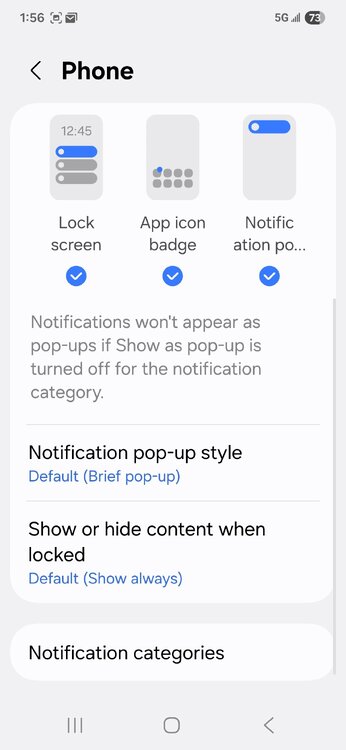
Configure browser push notifications

Chrome (Android)
  1. Tap the lock icon next to the address bar.
  2. Tap Permissions → Notifications.
  3. Adjust your preference.
Chrome (Desktop)
  1. Click the padlock icon in the address bar.
  2. Select Site settings.
  3. Find Notifications and adjust your preference.