


Guy Lavoie
Members
-
Joined
-
Last visited
-
Currently
Viewing Topic: Mistakenly setup z-matter instead of zooz
Everything posted by Guy Lavoie
-
dramatically? Oh my, time to redo my tests!
-
If you can ping it or access it with admin console ok, then try it with the eisy's IP address, ex: like this: http://192.168.0.123
-
Dang...not sure what fixed it... lol. I rebooted the Polisy and tried the update (from usual dashboard), no go. Then I thought I'd try with UD Mobile as you do it. Started by doing a sync, then went into plugins, TaHoma, and clicked on update. I did get an error message (500) but it did update. It's as if updates work from UD Mobile, but not from the dashboard.
-
Well, I'm going to try and figure this out. I'll test it with the Tahoma plugin, since it's only installed on a test Polisy, and only has two programs referencing the Tahoma nodes.
-
Well @oberkc was having a similar issue trying to update the Virtual plugin. Like I said, I know the way plugins are managed is being modified, so I thought this might be related.
-
Not sure where you're referencing that button. From the dashboard I see the plugin (in slot 8) with status = connected and store = beta. If I click on Details, I see the main screen for the plugin. If I click on Update, I see that I'm running 0.0.24. See the screen shot below. If I click on Update, nothing happens.
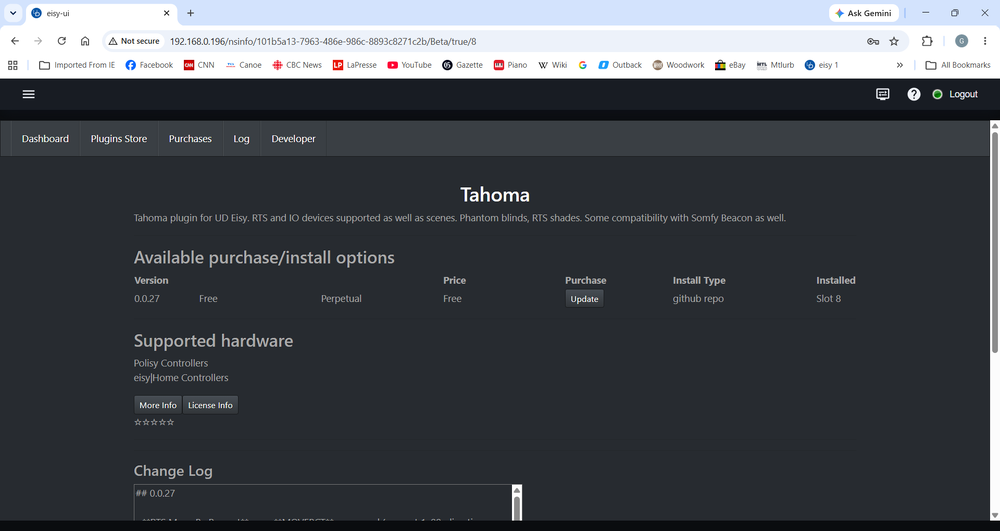
-
Try a full power cycle, with power off for 30 seconds.
-
It might be a good idea, yes.
-
Interesting. I have the same issue with trying to update another plugin (Tahoma): nothing happens. Changes are being made to the plugins environment, so there might be something here.
-
Hmm, how do I upgrade from 0.0.24? I'm trying from the dashboard, from the non-production store. It tells me it's already installed in slot 8, which is correct. But when I click on Install, nothing happens. Tried this by accessing plugins from both admin console and eisy-ui.
-
Well no...what's needed is an icon color that morphs darker or lighter in realtime as the shade closes or opens! 🤣
-
Is the device (the ZY 003 Sound Switch) a battery powered device? If so, do whatever is needed to activate it, and then do "Write Changes" (by right clicking on the node in Admin Console).
-
It's on the list of things that will be added.
-
That's a good first step.
-
Cool, and thanks! I'll get it updated later today. Looking forward to trying this! But sending the stop command twice might cause the shade to go to the preset "my" position if it receives both commands, since the stop command is dual function, depending on whether the shade is moving or not. I suggest we just observe things for a little while.
-
I do remember a similar recent case where someone had upgraded from 6.0.4 to 6.0.5 and his zigbee failed like that. UDI helped them to roll back to 6.0.4 and that fixed it. It was never explained what went wrong. And if I remember right, that person later upgraded to 6.1.1 later and that went well. Myself I have a eisy running 6.1.1 and a Polisy on 6.1.2, both with ZMatter dongles and zigbee is working fine on both. You might need to open a ticket on this one.
-
Well eisy-ui isn't yet a replacement for admin console, but it's a great time to learn it, as it becomes more complete. If it was working before but isn't now, you should try doing "upgrade packages " from admin console. If that doesn't work, you might need to open a ticket.
-
If you click on the question mark under the "Upgrade to" column in the System screen, you will see the release notes. If you want to see the release notes for 6.1.2_3 but haven't upgraded to it yet, temporarily switch to the staging repo, then you'll see the latest available versions, and can see the release notes without necessarily upgrading yet. Not sure what you mean by "allow eisy access from outside the LAN". Where have you seen this?
-
Yes. Personally I was setting the time values in programs, and not as plugin configuration parameters. It was just easier and more visible.
-
Yes, sounds right! Here is the description of this functionality in the Somfy plugin: In order to provide a shade position in the ISY, the time it takes for the shade to travel from fully closed to fully open is used. If the shade travels for half of this time, it's assumed to be at 50%. Each shade's travel time can be specified in the polyglot configuration. For each shade, create a key corresponding to its address seen in the admin console. For example, if the shade's address is shown as 'n001_01_01_01', create a key '01_01_01'. It's value can be a number corresponding to the shade's travel time. If no travel time is specified, the node will use a default value of 8 seconds. The time can also be specified in the ISY using a command, but note that this will not persist across node server reboots.
-
Nice. Did you give some thought to the timed open/close, to allow a command to open or close a certain percentage?
-
Yes. If your controller is a eisy.
-
I just upgraded my PC from a Hercules Graphics card to a spanking new VGA Wonder, and I'd like to enjoy it! ie: will we be able to actually set it colors? I found the admin console color easy on the eyes and it would be nice to be able to set it to something similar.
-
At this point it's more about getting familiar with eisy-ui. It will be at least a few months before it will be an actual replacement. But it looks promising. What I like to do is put admin console on one screen and eisy-ui on the other (2 screen PC) and look at the same resource on both. Great for correlating where things are going.
-
The "udx" pkg is the FreeBSD part of the upgrade.


